
Player Profile Overview
Player Profile – User Guide
City SC Mobile App
The Player Profile is where you manage your player’s personal details, contact information, team assignments, and other important account information. This guide walks you through how to view, edit, and update profile information.
Accessing the Player Profile
To access the Player Profile:
- Tap the Account Settings tab at the top right corner of the app (vertical ellipsis/dots).

- Choose Player Profile.

Editing Profile Information
To update profile details:
- Open Player Profile.
- Choose the Tab you wish to Edit
- General Info
- Contact Details/Address
- Guardian Details
- Payment Method


- Once in the section you wish to change, tap Edit.
- Select the field(s) you want to update.
- Enter new information.
- Tap Save.
Changes update immediately after saving.
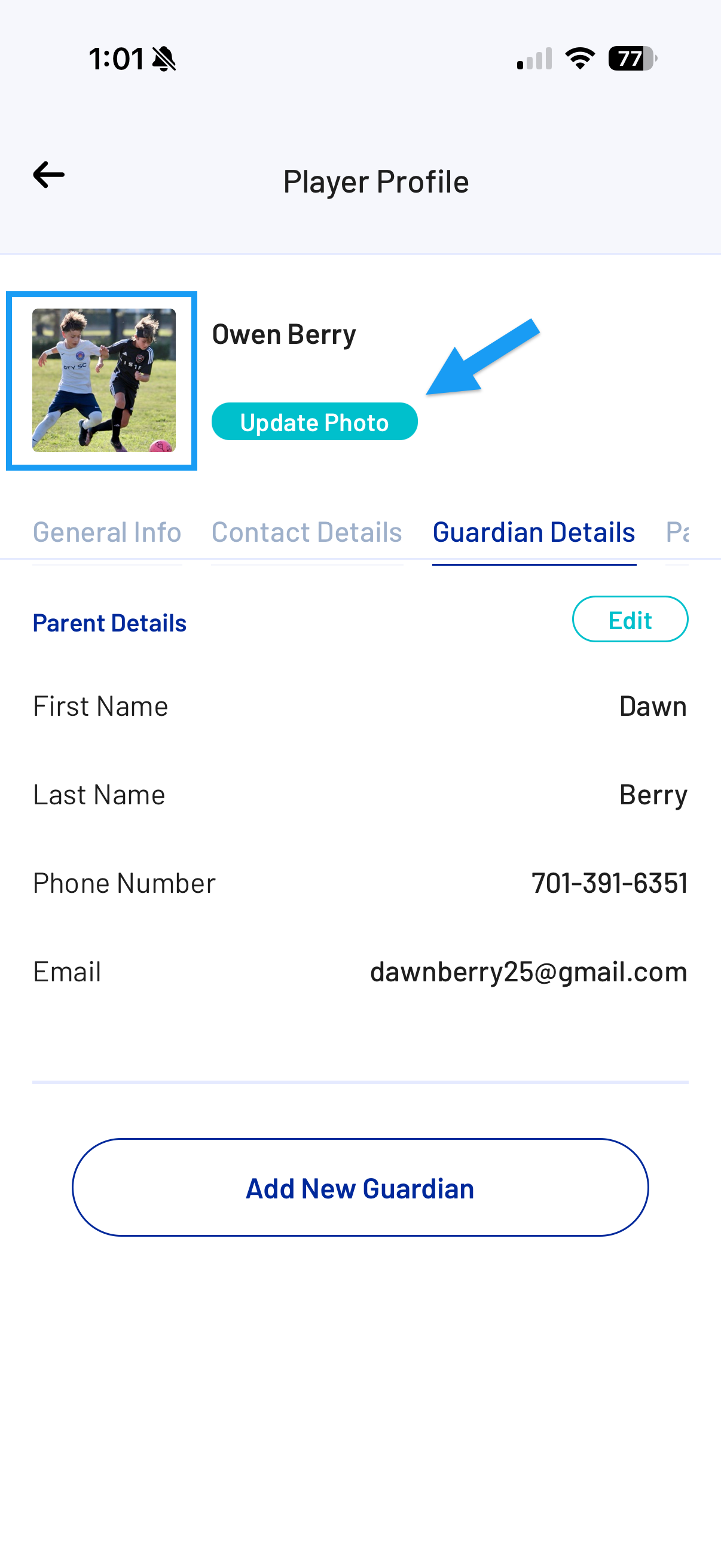
Updating the Player's Profile Photo
From the Player Profile page,
-
Tap the current profile image or tap Update Photo.
- Select new Image:
- Take Photo (use camera), or
- Choose from Gallery

- Manage permissions if needed.
- Select photo.
- Edit the image if desired.
- Tap Save.
Managing Guardian Information
You can Add, Edit and Delete Guardians to your player's account:
- Scroll to the Guardian Details section.
- From here you can:
- Update Parent Details
- Add a Guardian
- Resend a Guardian's Invitation
- Edit a Guardian's Details
- Delete a Guardian
- Tap Edit to update contact information.
- Tap Delete to remove a guardian from the player's profile.
- Tap Add New Guardian to add a guardian's contact information and send them an invitation.
- Save changes.
Changing Payment Method
You can Add/Edit Payment Methods in the Player Profile Account:
- Scroll to the Payment Method section.
- From here you can add your Card's information:
- Name
- Card Number
- Expiration date
- From here you can add your Card's information:

- Enter the new Payment Info

- Tap Save.