
How to Edit Parent/User Account
Accessing the User Account/Parent Profile
To access the User Account/Parent Profile:
- Tap the Account tab (Vertical Ellipsis) at the top right corner of the app (three dots).

-
Click on View Profile.
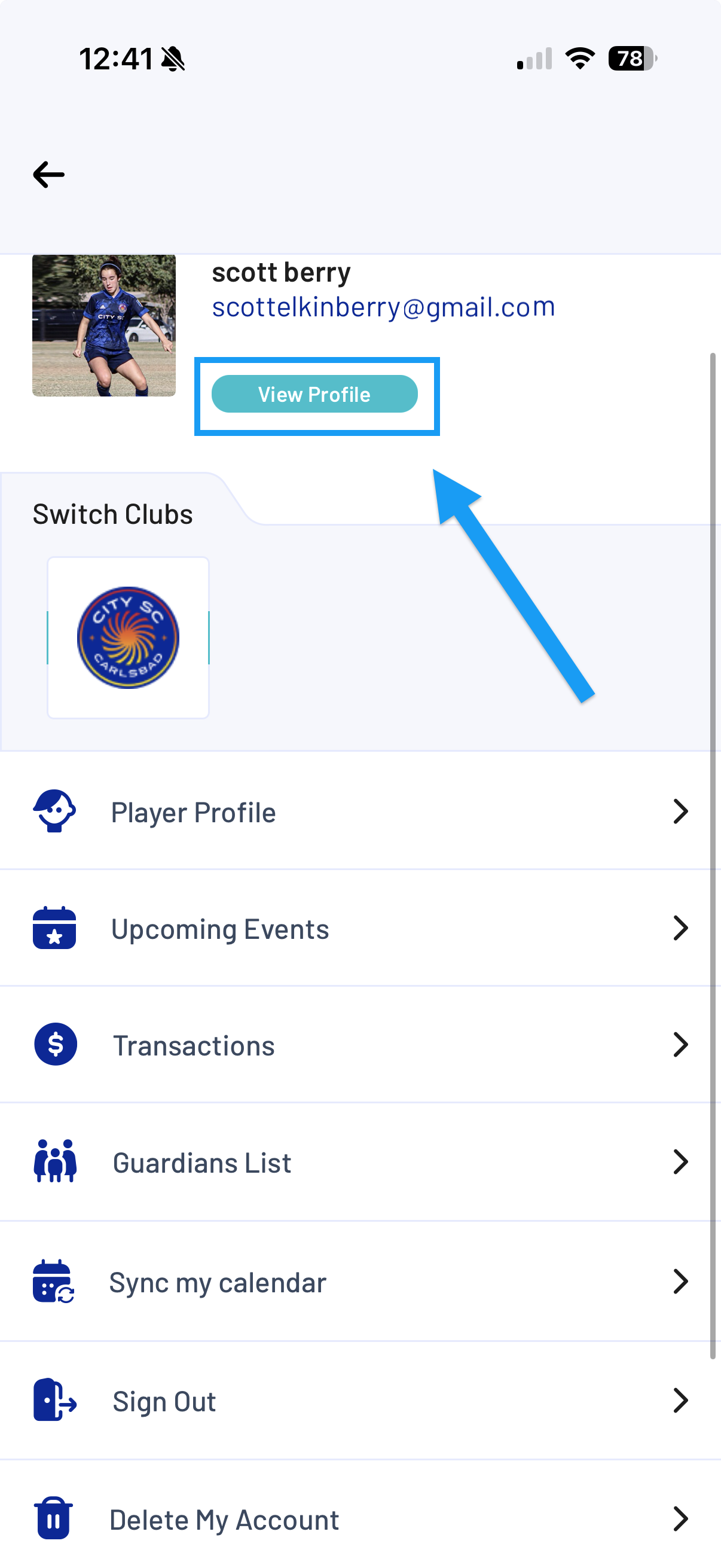
- From this page, users can:
- Change profile photo
- Update general information such as Name, Email, Phone number and Timezone
- Change password
To Change User Profile Photo
To change the user's Profile Photo:
- From within the User Profile, simply tap the Update Photo button.

- Select Photo:
- Take Photo (use camera), or
- Choose from Gallery

- Manage permissions if prompted.

- Adjust or crop the image if desired and tap Choose.
To Edit Parent Profile Information
To update Parent Profile details:
- Open Parent Profile.
- Locate the General Info tab and tap the Edit button.

- Select the field(s) you want to update. Enter new information and tap Save.

Changes update immediately after saving.
To Change User Password
To change your password:
- Open Parent Profile.
- Choose the Change Password Tab

- Enter your current password.
- Enter your new password.
- Confirm your new password.
- Tap Save.