
Sending Attachments in Chat
City SC 360's Mobile App Chat feature allows you to attach media and files to conversations. You can:
- Upload photos from your gallery
- Take and send photos or videos live
- Edit photos and videos before sending
- Attach files
- Manage which photos and videos are allowed in the app to send
To Send an Attachment
- Open or start the desired Chat Conversation.
- Click on the Attachment/Image Icon to the left of the message bar at the bottom of the screen.

- Choose your Attachment Option - See lower sections in this article for instructions on each.
- To take a Live Video or a Live Photo, click on the Camera icon.
- To add a photo or video from your phone, click on the Gallery icon.
- To add a document, click on the Files icon.

- Select the media or file you wish to send.

- Tap the Send arrow.

Your photos, videos, or files will appear in the chat thread.
See below sections for more details on how to Add Attachments via Camera, Gallery and Files.
Send a Photo or Video using your Camera
You can capture and send media directly inside the app. To take and send a Live Photo or Video:
- Open or start the desired Chat Conversation.
- Click on the Attachment/Image Icon to the left of the message bar at the bottom of the screen.
- Select the Camera icon.

- Allow camera permissions, if prompted.
-
Choose to Take a Photo or Record Video.
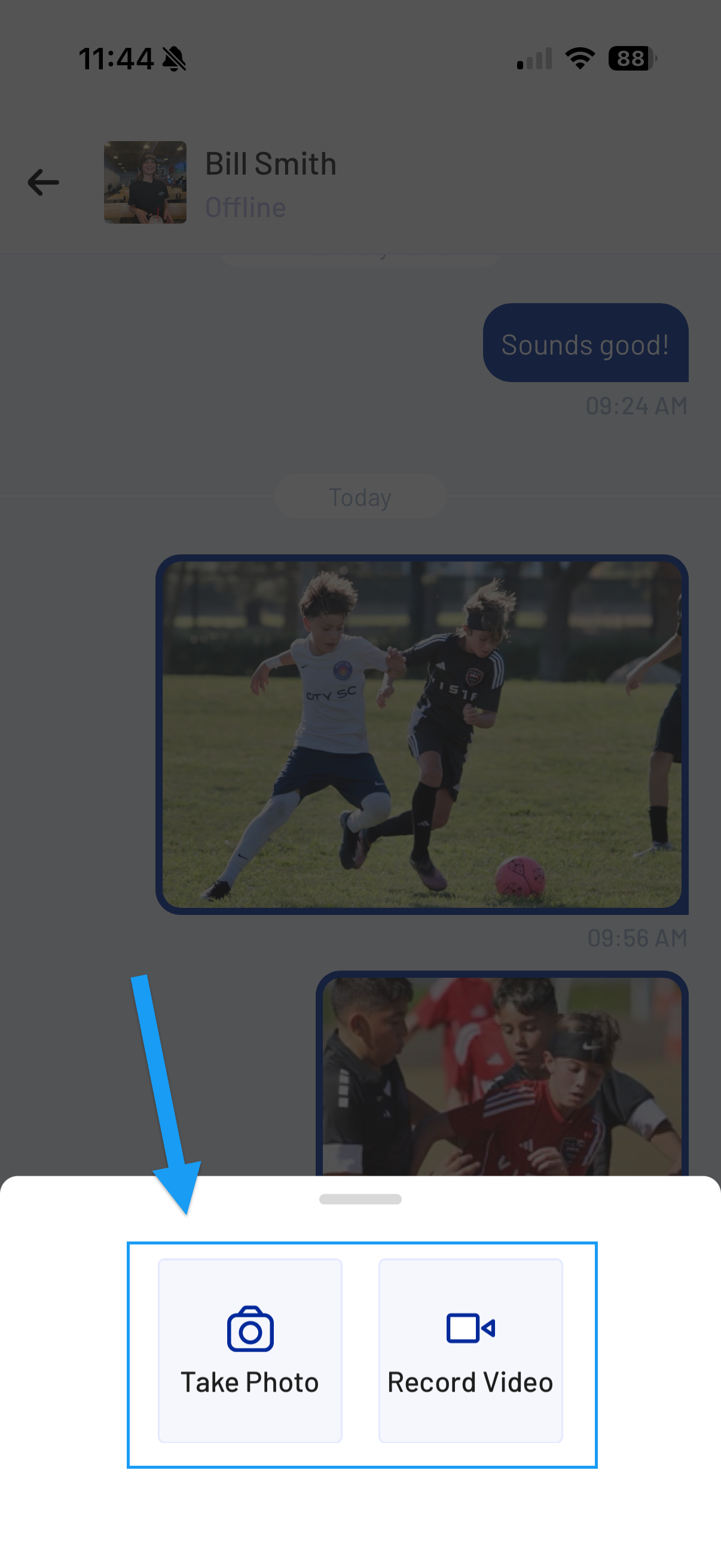
- Snap a photo or Record a video.
- Edit selected media, if desired (see editing section below).
- Click Choose.
- Type a message or caption, if desired.
- Tap the Send arrow.
Send a Photo or Video from your Gallery
To select Existing Media from your device:
- Open or start the desired Chat Conversation.
- Click on the Attachment/Image Icon to the left of the message bar at the bottom of the screen.
- Select the Gallery icon

- Allow permissions and/or Manage Photos and Videos, if prompted (see managing section below for more details on this).
- Select the item you wish to send (one photo or video can be sent at a time).
- Edit the selected item, if desired (see editing section below).

- Click Choose.
- Type a message or caption, if desired.

- Tap the Send arrow.
The Photo or Video will now appear in the chat.
Send a File from your Phone
You can attach files such as PDFs or documents to a chat message. To send a file:
- Open or start the desired Chat Conversation.
- Click on the Attachment/Image Icon to the left of the message bar at the bottom of the screen.
- Select Files.

- Browse your device storage.
- Select the file.
- The file will automatically upload and send. Make sure it is the file you wish to send as there is no option to edit the document or add a caption.
The file will now appear in the chat.
Editing Photos and Videos Before Sending
You may Edit a selected photo or video before sending. Edits apply only to the copy being sent — your original photos and video remain unchanged.
Editing tools include:
- Cropping an image (custom and preset crop options)
- Rotating an image
- Resetting an image
- Trimming a video.
To Edit a Photo or Video
- Select the media you wish to Edit and Send.
- Choose the Editing Tool you wish to use
- Editing tools will appear on the bottom of the screen for photos.
- Editing tools will appear on the top of the screen for videos.

- Edit your media. Make your adjustments:
- Use your fingers to crop an image to your preference.
- Rotate an image counterclockwise or clockwise.
- Reset an image to its original settings.
- Crop an image to a preset size.
- Trim a video to a specific clip (use your fingers to trim down the beginning and/or ending of a video).
- Tap Choose.
- Type a message or caption, if desired.
- Tap the Send arrow.
Managing Selected Photos & Videos
Before sending media from your phone, you can:
- Choose which photos and videos are allowed for the mobile app to access.
- Review selected photos and videos.
- Remove specific photo and video access if desired.
This allows you to control what the app can access and exactly what gets sent.
